SmartThings starts charging for Home Assistant on December 15: how to move your devices to local control
Disclosure: As an Amazon Associate I earn from qualifying purchases. Links to parts on this page are affiliate links, some through brand partnerships, so I may earn a commission at no extra cost to you. It never changes which parts I recommend.
Samsung has ended free access to the SmartThings cloud API. From December 15, 2026, the SmartThings integration in Home Assistant stops working unless you pay for a SmartThings Developer Plan. You can pay and keep going, or use the deadline to move your devices off the SmartThings cloud and onto local control, where no company can switch them off. This guide covers both, device type by device type.
Key dates. These are the dates SmartThings has announced as of early November 2026; SmartThings says plan details, pricing and availability may change.
- November 3, 2026: free cloud API access ended.
- November 4, 2026: the paid Developer Plan launched.
- December 2, 2026: the Home Assistant release that replaces the old SmartThings integration with a new one.
- December 15, 2026: the old integration stops working. Without a plan, SmartThings devices drop out of Home Assistant.
- Cost
- $0–$5/mo to pay, or about $30–70 per radio to go local
- Time
- An afternoon to a weekend
- Difficulty
- Intermediate
- Skills
- Re-pairing devices, Home Assistant settings
What's actually changing
Home Assistant's SmartThings integration doesn't talk to your devices directly. It talks to Samsung's cloud, and the cloud talks to your hub. That cloud connection is what Samsung now charges for.
- The Developer Plan costs $4.99 a month in the US (before tax). It includes 100,000 cloud API calls a month and up to 10 app installs. At launch it's sold only in some countries, but the December 15 cutoff applies to every Home Assistant user.
- Still free: the SmartThings app itself, routines and scenes inside the app, and local Edge drivers on a SmartThings hub.
- Not free any more: anything that drives SmartThings from outside through its cloud API, which includes the Home Assistant integration.
100,000 calls a month is about 3,300 a day. A modest setup fits easily; a large one with many busy sensors could run into the limit.
Option 1: pay and keep going
If you have only a few SmartThings devices, or Samsung appliances that have no local option, paying is the least work. SmartThings' instructions are to do this between December 2 and December 15:
- Buy the Developer Plan in your SmartThings developer account.
- Update Home Assistant to the December release with the new integration.
- Remove the existing SmartThings integration under Settings → Devices & services.
- Add SmartThings again. When it asks, create a personal access token in your SmartThings account and paste it in; the integration uses it once to set itself up.
- Check your devices and automations. SmartThings says device IDs carry over, so automations should keep working.
Paying keeps everything cloud-dependent, though: if SmartThings changes the price or the rules again, you're back here. The rest of this guide is about making that not matter.
Option 2: move to local control
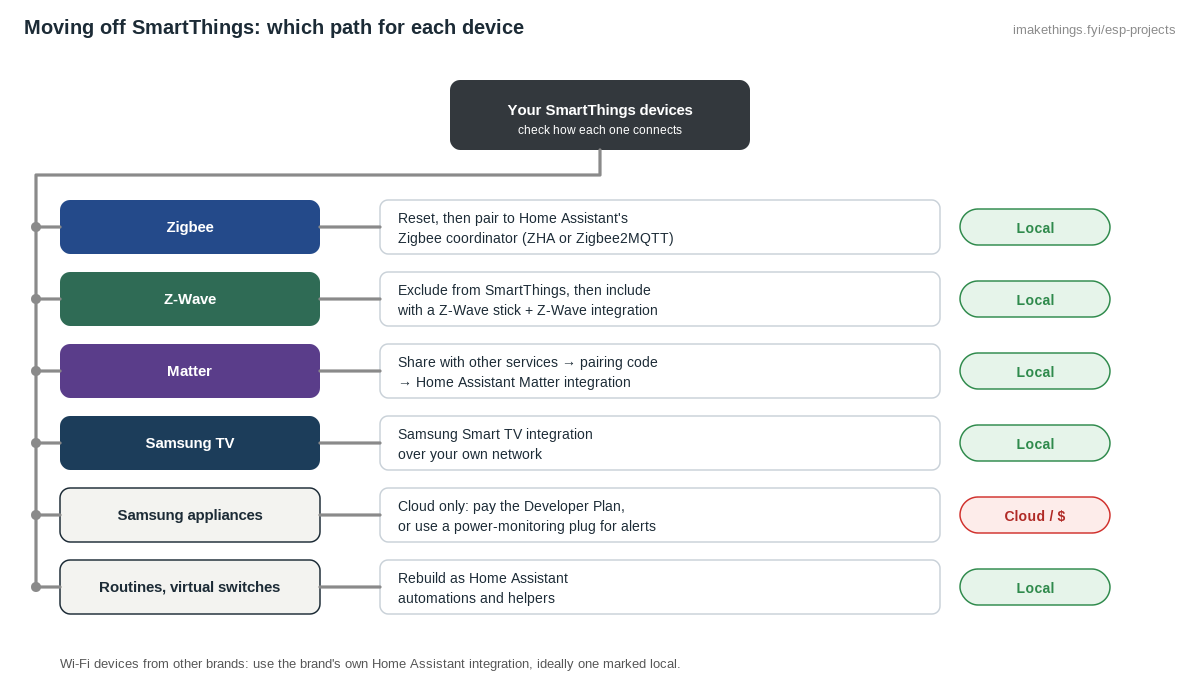
Most devices on a SmartThings hub speak a standard protocol, Zigbee, Z-Wave or Matter, that Home Assistant can run itself with the right radio. Moved over, they keep working with the internet down, respond faster, and cost nothing to run. What you need depends on what each device is.
| Device type | How to move it | What you need |
|---|---|---|
| Zigbee (most sensors, bulbs, plugs on a SmartThings hub) | Reset each device and pair it to Home Assistant's own Zigbee network | A Zigbee coordinator, such as Home Assistant Connect ZBT-2 or another supported USB stick |
| Z-Wave (many locks, switches, dimmers) | Exclude each device from SmartThings, then include it in Home Assistant | A Z-Wave stick, such as Home Assistant Connect ZWA-2, and the Z-Wave integration |
| Matter | Share it from SmartThings to Home Assistant; no reset needed | The Matter integration. Thread devices also need a Thread border router |
| Samsung TVs | Add them with Home Assistant's Samsung Smart TV integration, which works over your local network | Nothing extra |
| Wi-Fi devices from other brands | Check whether the brand has its own Home Assistant integration, ideally one marked local | Usually nothing extra |
| Samsung appliances (washers, fridges, ovens) | These reach Home Assistant only through the SmartThings cloud. Pay for the plan, or replace the part you use with a local sensor | For a laundry-done alert, a power-monitoring smart plug or a CT clamp |
| SmartThings routines and virtual switches | Rebuild them as Home Assistant automations and helpers | Nothing extra |
- Zigbee 3.0 USB coordinatorView on AmazonIllustration
- Home Assistant Connect ZWA-2 (Z-Wave stick)View on AmazonIllustration
Step 1: take an inventory
Before touching anything, write down every SmartThings device: its name, its room, what kind it is (Zigbee, Z-Wave, Matter, Wi-Fi or cloud), and which Home Assistant automations use it. In the SmartThings app, a device's settings page usually shows how it connects. In Home Assistant, open each SmartThings device to see its entities and the automations that use them.
Most importantly, note each entity's entity ID, such as binary_sensor.back_door. That's what lets you move a device without breaking automations, in Step 4.
Step 2: set up the local radios
- Zigbee: plug the coordinator into your Home Assistant machine, ideally on a short USB extension cable so it isn't next to the computer's USB 3 ports, which interfere with 2.4 GHz radios. Add it with the Zigbee Home Automation (ZHA) integration, or with Zigbee2MQTT if you prefer it. Not sure which? See ZHA vs Zigbee2MQTT.
- Z-Wave: plug in the stick and add the Z-Wave integration. Locks need secure inclusion, so keep the codes or QR stickers that came with them.
- Matter: add the Matter integration. Home Assistant needs IPv6 on your network for Matter to work. Thread devices need a Thread border router. Many smart speakers and hubs already are one, or a second Connect ZBT-2 set to Thread can be. One adapter runs either Zigbee or Thread, not both.
Leave SmartThings running for now. You'll move devices across one at a time while everything else keeps working.
Step 3: move the devices
Matter devices first
These are the easiest, because a Matter device can belong to SmartThings and Home Assistant at the same time:
- In the SmartThings app, open the device, tap the settings icon, and choose Share with other services. Get the QR code or the numeric pairing code. It expires after 15 minutes.
- In the Home Assistant companion app, go to Settings → Devices & services → Add device → Add Matter device, choose that it's already in another app, and enter the code.
- Once it works in Home Assistant, you can remove it from SmartThings, or leave it in both.
Zigbee devices
Zigbee devices belong to one network at a time, so each one has to leave SmartThings and join Home Assistant:
- Delete the device in the SmartThings app. That usually resets it too; if not, reset it by hand (the maker's manual says how, often a long button press).
- In Home Assistant, open the ZHA integration and choose Add device, then put the device in pairing mode.
- Pair mains-powered devices like plugs and bulbs first. They become repeaters and strengthen the network for the battery sensors that follow.
Z-Wave devices
- In SmartThings, remove the device. On Z-Wave this is called exclusion, and the app walks you through it.
- In Home Assistant's Z-Wave integration, choose Add device. Scan the QR code on the device or its box for secure inclusion.
- Do locks next to the stick, or move the stick closer; secure inclusion is fussy about range.
Step 4: keep your automations working
A re-paired device comes back as a brand new device with new entity IDs, so automations that used the old ones stop working. The fix takes a minute per device:
- Open the old SmartThings entity, open its settings, and change its entity ID to something temporary, like adding
_oldto the end. - Open the new entity, open its settings, and set its entity ID to exactly what the old one was, such as
binary_sensor.back_door. - Your automations, dashboards and scripts now point at the local device without editing any of them.
Check each automation once after its devices move, especially ones that depend on attributes, since a Zigbee or Z-Wave device can report slightly differently than its SmartThings version did.
Step 5: rebuild routines and remove SmartThings
Recreate any SmartThings routines you still rely on as Home Assistant automations, so they no longer depend on the SmartThings app. When the last device has moved, remove the SmartThings integration from Home Assistant. Keep the SmartThings hub plugged in for anything left on it, like a Samsung appliance, or retire it.
Buying devices from here on
Every Home Assistant integration page shows an IoT class. Local push and local polling mean it talks to the device on your own network; cloud push and cloud polling mean it depends on a company's servers, the way SmartThings does. For new devices, Zigbee, Z-Wave and Matter all work locally, as does anything you build yourself with ESPHome, like every project on this site.
Frequently asked questions
Will the SmartThings integration stop working in Home Assistant?
Yes, unless you pay. From December 15, 2026, the SmartThings integration needs a paid SmartThings Developer Plan. Devices you move to local radios in Home Assistant keep working with no plan at all.
Can I move SmartThings Zigbee devices to Home Assistant without buying new ones?
Usually, yes. Most Zigbee devices pair straight to a Zigbee coordinator in Home Assistant after you remove them from SmartThings. You'll need a coordinator, such as a USB Zigbee stick, and then use ZHA or Zigbee2MQTT.
Do I have to rebuild my automations after moving devices?
Not if you rename the new entities to the old entity IDs. Home Assistant automations refer to entity IDs, so once a moved device has the same ID, the automations that used it keep working.
What happens to devices that only work through the SmartThings cloud?
Those can't move to local control. Keep them on SmartThings if you pay for the plan, find a local integration for that brand, or plan to replace them with Zigbee, Z-Wave or Matter devices.
Troubleshooting
| Symptom | Likely cause and fix |
|---|---|
| Matter share code is rejected | The code expired (15 minutes) or IPv6 is off on your network. Get a fresh code and check the router's IPv6 setting. |
| Zigbee device won't pair | It's still joined to SmartThings. Reset it by hand, keep it close to the coordinator, and pair a mains-powered device nearby first. |
| Battery sensors keep dropping off | Not enough repeaters yet. Add mains-powered Zigbee plugs or bulbs between the coordinator and the sensors. |
| Lock won't include securely | Range. Move the stick closer or bring the lock to it, and use the QR code or PIN that came with it. |
| Automations stopped working after a move | The device came back with new entity IDs. Rename the new entity to the old ID, as in Step 4. |