ZHA vs Zigbee2MQTT: which to use in Home Assistant, and how to switch
Disclosure: As an Amazon Associate I earn from qualifying purchases. Links to parts on this page are affiliate links, some through brand partnerships, so I may earn a commission at no extra cost to you. It never changes which parts I recommend.
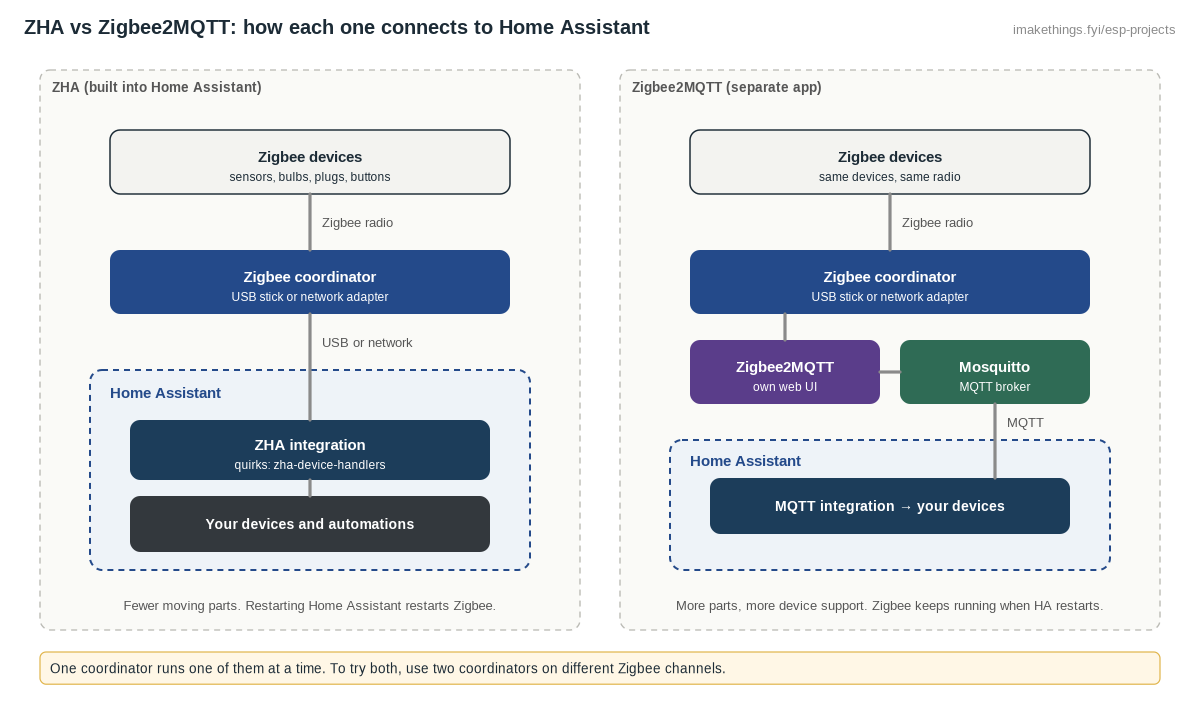
Home Assistant can run a Zigbee network two ways: ZHA, which is built in, or Zigbee2MQTT, a separate app. Both use the same USB radio, run the same sensors, bulbs and plugs, keep everything local and cost nothing. They differ in how much they support and how many moving parts they bring. This guide helps you choose, sets up either one, and covers switching later or bringing devices over from SmartThings.
The short answer. New to Zigbee with mostly mainstream devices? Start with ZHA. It's already in Home Assistant and has the fewest parts. Pick Zigbee2MQTT if you have a lot of off-brand or unusual devices, want Zigbee to keep running while Home Assistant restarts, or want its detailed device controls. Check your devices against both before you pair anything, because switching later means pairing everything again.
- Cost
- $35–60 for a coordinator
- Time
- 1–2 hours to set up, longer to move devices
- Difficulty
- Beginner to intermediate
- Skills
- None
What they have in common
Zigbee is a low-power mesh radio. Devices talk to a coordinator, a small radio plugged into your Home Assistant machine, and mains-powered devices like plugs and bulbs relay messages for the battery-powered ones. ZHA and Zigbee2MQTT are two programs that drive that coordinator. Either one gives you a local Zigbee network with groups, direct device-to-device bindings and over-the-air firmware updates, and nothing goes through a company's servers.
What you can't do is run both on one coordinator at once. One radio, one program.
How they differ
| ZHA | Zigbee2MQTT | |
|---|---|---|
| Where it runs | Inside Home Assistant, as an integration | As its own app or container, talking to Home Assistant over MQTT |
| Extra pieces | None | An MQTT broker, usually the Mosquitto app |
| Setup | Plug in the coordinator and follow the prompts | Install two apps and set the adapter type and port |
| Device support | Standard Zigbee devices, plus fixes for odd ones (called quirks) that ship with Home Assistant | Its own list of thousands of devices from hundreds of brands; new models often arrive here first |
| When Home Assistant restarts | The Zigbee network restarts with it | Zigbee keeps running, and states catch up when Home Assistant returns |
| Where you manage it | Home Assistant's own device pages | Its own web page, with a live network map and every setting a device exposes |
| Moving to a new coordinator | Built-in migration wizard | Automatic backup and restore to an adapter of the same chip family |
| Other software | Home Assistant only | Anything that speaks MQTT, like Node-RED |
Step 1: check your devices
This is the step that decides it. Look up every Zigbee device you own, or plan to buy:
- Zigbee2MQTT's supported devices list at zigbee2mqtt.io shows each model and exactly what it exposes.
- The Zigbee Device Compatibility Repository at zigbee.blakadder.com lists devices with notes on ZHA and Zigbee2MQTT support side by side.
Mainstream brands that stick to the Zigbee standard usually work the same on both. The gap shows up with cheap off-brand sensors, especially Tuya-based ones, which often use their own non-standard messages. If several of your devices are listed only for Zigbee2MQTT, that settles it.
Step 2: pick a coordinator
- Zigbee 3.0 USB coordinatorView on AmazonIllustration
Any current coordinator works with both programs. What matters is the chip family, because it decides a Zigbee2MQTT setting and limits how you can migrate later:
- Home Assistant Connect ZBT-2 ($49) is Home Assistant's own adapter, built on a Silicon Labs MG24 chip. It works with ZHA, Zigbee2MQTT and Thread, but runs either Zigbee or Thread at a time, not both.
- Other USB sticks use either a Silicon Labs chip (Zigbee2MQTT adapter type
ember) or a Texas Instruments CC2652 chip (adapter typezstack). Check the listing before you buy, and skip anything built on the old CC2531. - Network coordinators plug into Ethernet instead of USB. They make sense when your Home Assistant box sits in a basement or a closet and you want the radio in the middle of the house.
Placement matters more than brand
- Use a USB extension cable. USB 3 ports and SSDs give off interference that drowns out a Zigbee radio plugged directly into them. Even a short cable that moves the stick away from the computer makes a big difference.
- Keep it away from the Wi-Fi router. Zigbee and Wi-Fi share the 2.4 GHz band.
- Choose the channel before you pair. Zigbee channels 15, 20 and 25 sit mostly between the common Wi-Fi channels 1, 6 and 11. Changing channels later is possible, but some devices don't follow and have to be paired again.
Step 3a: set up ZHA
- Plug the coordinator in on its extension cable. Home Assistant usually discovers it, and a notice appears under Settings → Devices & services.
- Click Add on the discovered Zigbee Home Automation entry, or add the integration by hand and pick your adapter's port. Choose to create a new network.
- To pair a device, open the ZHA integration, click Add device, then put the device in pairing mode. That's usually a long press on its button, or switching a bulb on and off several times.
- Pair mains-powered devices like plugs and bulbs first, starting near the coordinator and working outward. They become routers that battery devices connect through.
Step 3b: set up Zigbee2MQTT
On Home Assistant OS, Zigbee2MQTT runs as an app. Home Assistant renamed add-ons to apps in early 2026, so older guides call them add-ons.
- Install the broker. Go to Settings → Apps, open the app store, install Mosquitto broker and start it. Home Assistant discovers it and offers to set up the MQTT integration; accept.
- Add the Zigbee2MQTT repository. In the app store, open the menu, choose Repositories and add
https://github.com/zigbee2mqtt/hassio-zigbee2mqtt. Install Zigbee2MQTT, not Zigbee2MQTT Edge, which tracks unfinished development code. - Tell it about your coordinator. Use the port under
/dev/serial/by-id/, which doesn't change when you plug in other USB devices. You'll find it under Settings → System → Hardware → All hardware. For a Connect ZBT-2, Nabu Casa gives these settings:
serial:
  adapter: ember
  port: /dev/serial/by-id/usb-Nabu_Casa_ZBT-2_<serial-number>-if00-port0
  baudrate: 460800
  rtscts: true
For a TI-based stick, use adapter: zstack with that stick's own port and leave the baud rate at its default.
- Keep ZHA off the stick. If Home Assistant discovered the coordinator for ZHA, ignore or delete that discovery so the two don't fight over it.
- Start the app and open its web page from the sidebar. To pair, click Permit join, put the device in pairing mode, and give it a clear name. That name becomes its entity ID in Home Assistant.
Running Home Assistant in Docker instead? Run the Zigbee2MQTT and Mosquitto containers next to it, pass the coordinator through to the Zigbee2MQTT container, and add the MQTT integration in Home Assistant pointing at the broker.
Switching later
There are three different jobs here, and only one of them is painless:
- New coordinator, same program: easy. ZHA has a built-in migration option in the integration's settings that backs up the network and restores it to the new adapter, so devices don't need re-pairing. Zigbee2MQTT saves a coordinator backup automatically and restores it to a new adapter of the same chip family. Going between chip families, from TI to Silicon Labs for example, isn't officially supported in Zigbee2MQTT, so expect to re-pair.
- ZHA to Zigbee2MQTT, or back: plan to re-pair every device. Neither program can import the other's device database. Community scripts exist that try, but they're unsupported and have broken after Home Assistant updates.
- The gentle way to switch: buy a second coordinator, set the new network to a different channel, and run both side by side. Move devices over a room at a time, so the house never stops working.
Moving a device from one network to the other
- Turn on pairing in the new network.
- Remove the device from the old one. Removing it sends the device a "leave" command, and many plugs and bulbs reset straight into pairing mode; bulbs usually blink when they do.
- Battery devices often need a manual reset. Do them close to the coordinator, or close to a router already moved to the new network.
- Move routers first, then the battery devices that depend on them.
Re-paired devices come back with new entity IDs. Rename each new entity to the old ID and your automations keep working. The SmartThings migration guide walks through that rename trick in its step 4.
Coming from SmartThings
If your Zigbee devices are on a SmartThings hub, you're re-pairing them anyway, which makes this the cheapest moment to choose. Remove each device in the SmartThings app, then pair it in ZHA or Zigbee2MQTT as above. The SmartThings guide covers the December 15 deadline, Z-Wave, Matter and the devices with no local option.
A stronger mesh
- Battery devices never relay. Only mains-powered devices act as routers. A house full of battery sensors and a coordinator in one corner will drop devices.
- Add a router every room or two. A few cheap Zigbee smart plugs spread around do the job.
- Give the mesh a day. After a lot of pairing, routes settle over the next several hours. A device that looks flaky right after pairing often sorts itself out.
Frequently asked questions
Should I use ZHA or Zigbee2MQTT?
Start with ZHA if you're new to Zigbee and your devices are mainstream brands, because it's built into Home Assistant. Choose Zigbee2MQTT if you have many off-brand or unusual devices, or want Zigbee to keep running while Home Assistant restarts.
Can I switch from ZHA to Zigbee2MQTT without re-pairing devices?
No, not with a supported method. Neither program can import the other's network, so plan to re-pair every device. Running a second coordinator on a different channel lets you move devices over a room at a time.
Can ZHA and Zigbee2MQTT use the same Zigbee stick?
No. One coordinator can only be driven by one program at a time. To run both, use two coordinators on different Zigbee channels.
Does the Home Assistant Connect ZBT-2 work with Zigbee2MQTT?
Yes. Use the ember adapter type in Zigbee2MQTT, with the port from /dev/serial/by-id, a baud rate of 460800 and hardware flow control turned on.
Troubleshooting
| Symptom | Likely cause and fix |
|---|---|
| Zigbee2MQTT can't connect to the adapter | Wrong port or adapter type. Use the /dev/serial/by-id path, ember for Silicon Labs or zstack for TI, and make sure ZHA isn't using the stick. |
| Zigbee2MQTT devices don't show up in Home Assistant | MQTT isn't connected. Check the Mosquitto app is running, the MQTT integration is set up, and Home Assistant discovery is on in Zigbee2MQTT. |
| Devices keep going unavailable | Interference or too few routers. Put the coordinator on a USB extension cable and add mains-powered devices between it and the far rooms. |
| A device pairs but is missing features | It needs a quirk or converter. Check the compatibility lists, update Home Assistant or Zigbee2MQTT, and re-pair it. |
| A battery sensor won't join | Not reset or out of range. Factory reset it close to the coordinator, and press its button every few seconds to keep it awake while it pairs. |